

- Website migrations
- Domain forwarding
- Marketing campaigns
- SaaS onboarding links
- Vanity URLs
- Product launch pages
- SEO-friendly URL redirection
- Redirecting deprecated endpoints
What is URL Redirection?
URL redirection automatically forwards visitors from one URL to another destination URL. For example:Source URL
Target URL
- 301 Permanent Redirects
- 302 Temporary Redirects
Benefits of Redirect URL Management
- Create production-ready redirects instantly
- SEO-friendly permanent redirects
- Temporary redirects for testing and migrations
- Automatic HTTPS support
- DNS verification and configuration
- Custom branded domains
- Real-time redirect monitoring
- Fast global redirect routing
- Multiple redirect support
- Secure SSL-enabled infrastructure
Every redirect created on Antryk supports automatic HTTPS provisioning after
successful domain verification.
Redirect Types
301 Redirect — Permanent Redirect
A 301 redirect tells browsers and search engines that a URL has permanently moved to a new destination. Best used for:- Website migrations
- Domain changes
- SEO preservation
- Rebranding
- Permanent route changes
Example
Benefits
- Preserves SEO rankings
- Transfers search engine authority
- Recommended for production migrations
- Cached by browsers for faster performance
302 Redirect — Temporary Redirect
A 302 redirect tells browsers that the redirect is temporary. Best used for:- Maintenance pages
- Temporary campaigns
- A/B testing
- Short-term routing changes
- Feature rollouts
Example
Benefits
- Temporary traffic routing
- Does not permanently transfer SEO authority
- Easy rollback support
- Useful for testing environments
Redirect URL Dashboard
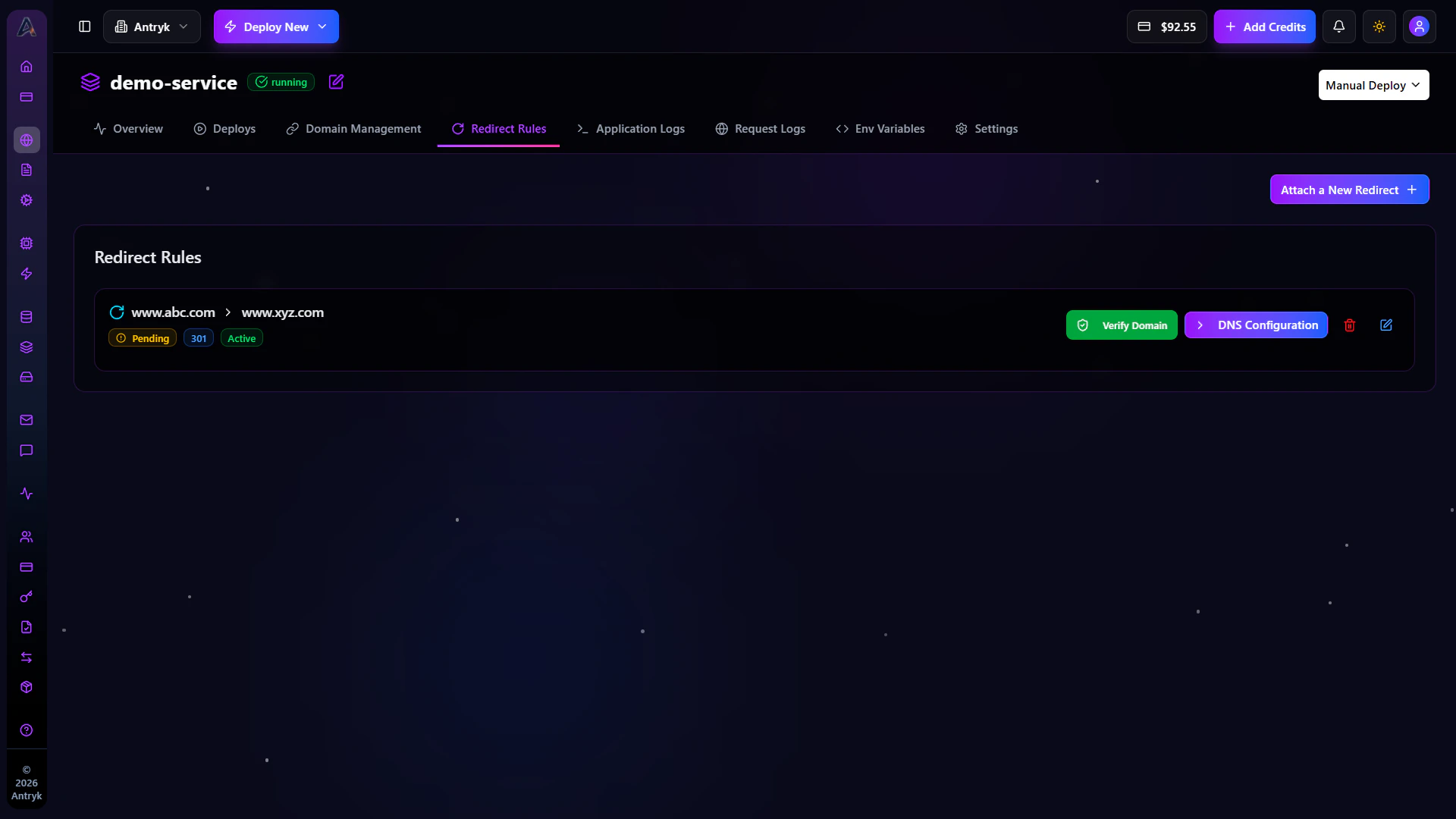
- Add new redirects
- Configure source and target URLs
- Select redirect type
- Verify domains
- View DNS configuration
- Monitor verification status
- Enable HTTPS automatically
- Manage multiple redirects
Creating a New Redirect
To create a redirect:- Open the Antryk Dashboard
- Navigate to the Redirect URL Management section
- Click Add Redirect
- Enter the Source URL
- Enter the Target URL
-
Select redirect type:
- 301 Permanent
- 302 Temporary
- Save the redirect
- Configure DNS records
- Verify your domain
Redirect Configuration
Each redirect contains the following configuration:Supported Redirect Examples
Subdomain Redirects
Root Domain Redirects
Marketing Redirects
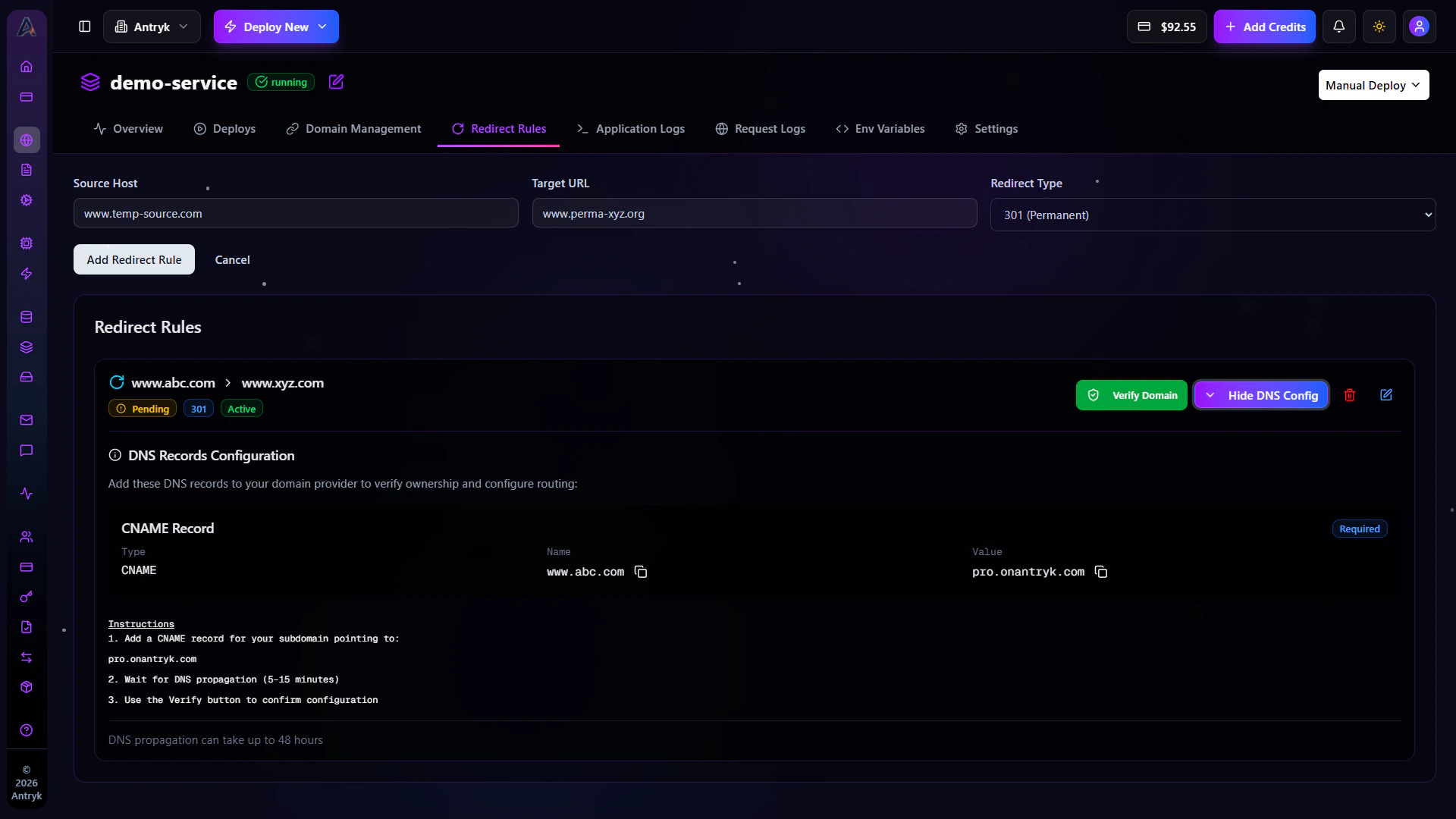
Domain Verification
Before a redirect becomes active, Antryk verifies domain ownership through DNS records. Users can click:Verify Domain
inside the dashboard to validate DNS configuration and activate the redirect. Verification helps ensure:- Secure ownership validation
- Correct DNS routing
- SSL certificate provisioning
- Safe HTTPS activation
DNS Configuration
Antryk automatically provides DNS instructions required for redirect setup. Users can view DNS configuration directly from the dashboard. Supported DNS records include:- CNAME Records
- A Records
- ANAME Records
- TXT Verification Records
Example DNS Records
CNAME Record
Use CNAME records for subdomains.Example
Supported For
A Record
Use A records for apex/root domains.Example
Supported For
ANAME Record
ANAME records help map root domains to redirect infrastructure.Example
TXT Verification Record
TXT records are used for domain ownership verification.Example
DNS propagation may take several minutes depending on your DNS provider.
HTTPS and SSL Certificates
After successful DNS verification, Antryk automatically provisions SSL certificates for your redirect domains. SSL certificates are:- Automatically generated
- Automatically renewed
- HTTPS enabled by default
- Fully managed by Antryk
- Production ready
Redirect Status Monitoring
The dashboard provides real-time redirect status updates. Users can monitor:- DNS propagation
- Verification progress
- Redirect activity
- SSL provisioning
- HTTPS activation
- Active redirect status
Managing Redirects
Users can manage all redirects directly from the dashboard. Supported actions include:- View redirects
- Edit redirect targets
- Change redirect types
- Reverify domains
- Delete redirects
- Monitor SSL status
- View DNS instructions
Troubleshooting Redirects
Domain Verification Failed
- Ensure DNS records are correct
- Wait for DNS propagation
- Remove conflicting DNS entries
- Verify nameserver configuration
Redirect Not Working
- Verify redirect is active
- Confirm DNS points to Antryk
- Recheck source URL configuration
- Retry domain verification
SSL Certificate Pending
- Wait for DNS propagation
- Verify domain ownership
- Ensure DNS records match dashboard instructions
HTTPS Not Active
- Confirm SSL provisioning completed
- Retry verification
- Ensure redirect domain points correctly to Antryk infrastructure
Deploy Your First Web Service
Get started with web services